Banking Overview — Connect and Manage Bank Accounts
Connect your bank, see your balances, and keep transactions up to date — all under Betalingen in the sidebar.
This lets SmartLandlord match income and expenses to your properties automatically.
Connect a bank
On the Bankoverzicht page, click Verbind Bank and follow the steps to link your bank securely. You can also use Handmatig account toevoegen to track an account by hand if your bank is not supported or you prefer manual updates.
When connecting a bank:
- Follow the on-screen instructions from our banking partner to sign in to your online banking.
- Choose which accounts you want to share with SmartLandlord.
- Confirm access so transactions can be imported automatically.
You can always disconnect a bank later from the same overview page if needed.
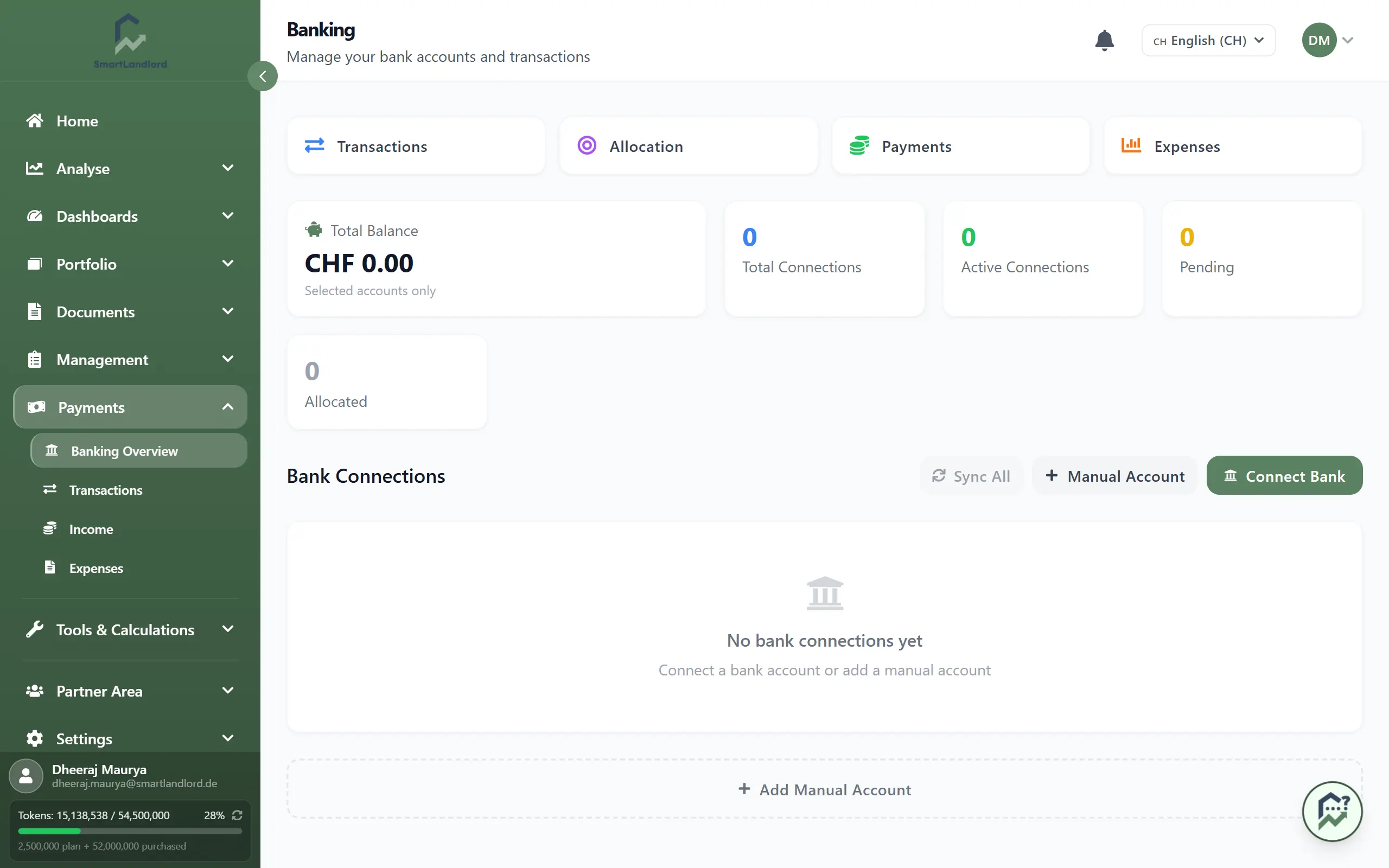
What you see
The banking overview provides a summary of your connected accounts and banking connections.
From this page you can:
- View connected bank accounts.
- Review current account balances.
- Check synchronization status.
- Connect additional banks.
- Add manual accounts.
- Open related banking areas.
The overview is designed to give you a quick understanding of the current state of your banking data without needing to open each account individually.
Keep it in sync
Your linked banks appear under Bankverbindingen. Each connection shows its status (for example, active or needs attention) and when it last synced.
Use Alles synchroniseren to pull the latest transactions from all active connections at once. If one connection shows an error, open it to see what went wrong (for example, expired credentials) and follow the prompts to reconnect.
Keeping your connections in sync ensures your income and expense views stay accurate and up to date.
Understanding connection status
Each banking connection displays information about its current state.
A healthy connection indicates that SmartLandlord can communicate with the bank and import transaction data successfully. If a connection requires attention, review the details provided and follow the suggested steps.
Common situations include:
- A connection that needs to be re-authorized.
- Banking credentials that have changed.
- Temporary synchronization interruptions.
- Bank-side maintenance affecting data access.
Checking connection status regularly helps prevent gaps in imported transaction data.
Your accounts
The Rekeningen section lists every account with its balance. From here you can:
- Open Transacties to review and categorize all incoming and outgoing payments.
- Go to Inkomsten to focus on rent and other income streams.
- Switch to Uitgaven to see and manage your property-related costs.
Use these sections together to keep your rental cashflow reconciled with your bank accounts.
Reviewing transactions
After synchronization, review imported transactions periodically to ensure the information is complete and accurate.
Regular reviews help confirm that recent transactions have been imported correctly and that your financial records remain accurate.
Regular reviews help you:
- Confirm that recent transactions have been imported.
- Verify rent payments received from tenants.
- Review property-related expenses.
- Identify transactions that may need additional review.
- Keep records up to date.
Maintaining accurate transaction records makes it easier to work with the related income and expense sections.
Manual accounts
If your bank is not available for automatic synchronization, you can use Handmatig account toevoegen to track an account manually.
Manual accounts can be useful when:
- A financial institution is not supported.
- You want to track a separate account manually.
- You prefer to manage balances without automatic synchronization.
Keeping manual accounts updated helps ensure your banking information remains complete.
Best practices
To keep your banking data accurate:
1. Review synchronization status regularly.
2. Run synchronization when new transactions are expected.
3. Verify imported transactions periodically.
4. Resolve connection issues promptly.
5. Keep connected account information current.
Regular maintenance helps ensure that the banking section reflects the most current information available.
Related areas
The banking section works closely with other areas of SmartLandlord.
You can navigate directly to:
- Transacties for transaction review.
- Inkomsten for income records.
- Uitgaven for expense management.
Using these areas together helps maintain accurate financial records across your portfolio.