View and Allocate Banking Transactions
The Transacties page is the central place for managing all banking transactions in SmartLandlord.
Every imported, synchronized, uploaded, or manually created transaction appears here for review. Keeping transactions organized and correctly assigned helps ensure that income, expenses, cashflow, and reporting remain accurate throughout the platform.
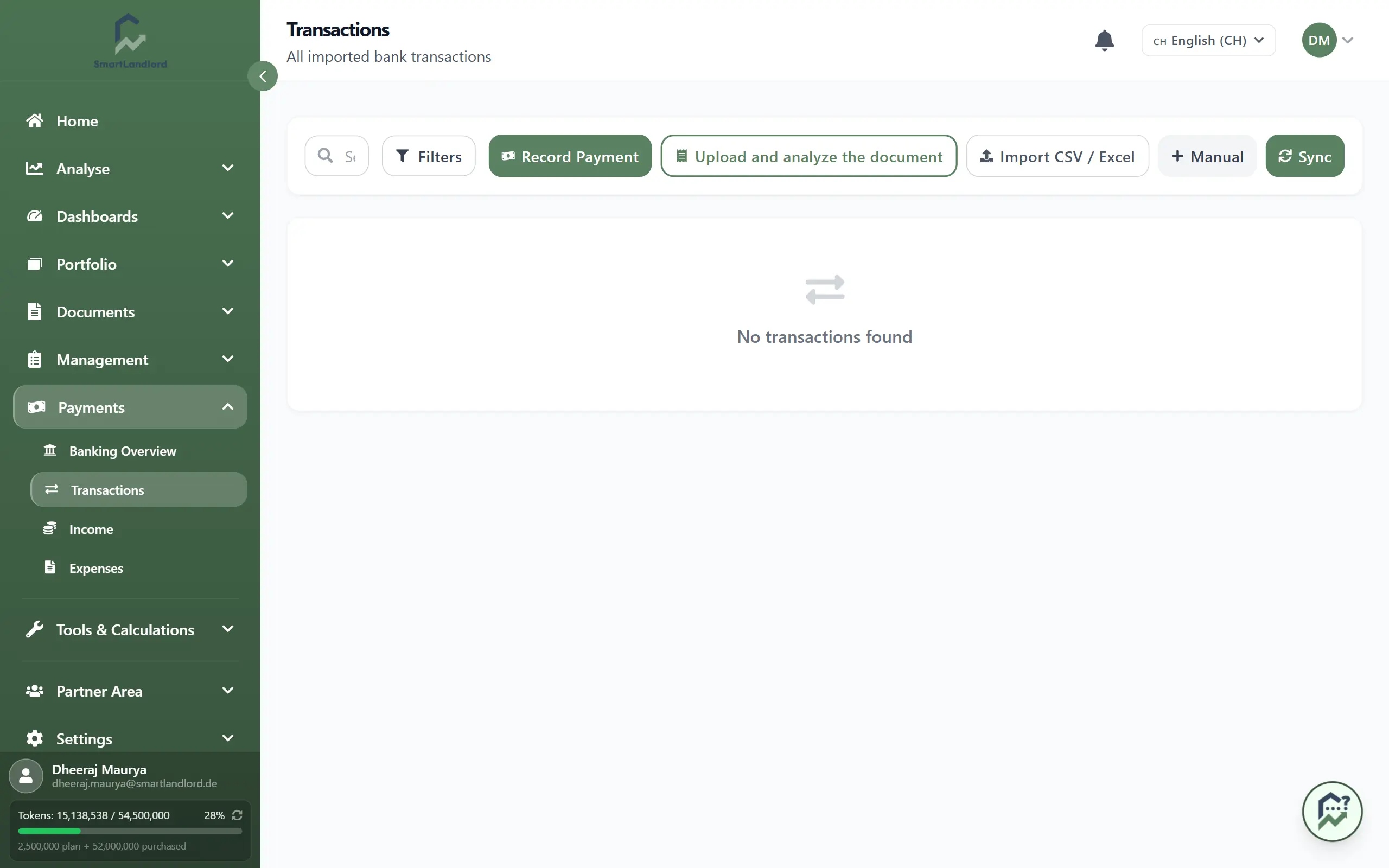
Getting transactions into SmartLandlord
There are several ways to add transactions.
Sync
Synchronize transactions from connected bank accounts.
This option retrieves the latest available transactions and adds them to SmartLandlord automatically.
CSV / Excel importeren
Import transactions from a CSV or Excel file exported by your bank.
This is useful when:
- Your bank is not connected directly.
- You want to import historical transactions.
- You manage accounts manually.
Bon scannen
Upload receipts, invoices, or PDF documents and allow SmartLandlord to extract transaction information automatically.
This can reduce manual data entry and help keep records complete.
Betaling toevoegen
Create a transaction manually.
Use this option when:
- A transaction is missing.
- You want to record a payment directly.
- The transaction was not imported automatically.
You can use multiple methods at the same time depending on how your accounts and workflows are managed.
Reviewing transactions
Once transactions have been imported or created, review them regularly to ensure the information is accurate.
Use the available search and filter options to locate specific transactions.
Common filters include:
- Date range.
- Property.
- Status.
- Income.
- Expense.
Filtering transactions makes it easier to find items that still require review or allocation.
When reviewing transactions, verify that the amount, date, and description match the original banking information. Regular reviews help identify imported transactions that may require additional attention or manual allocation.
Assigning transactions
SmartLandlord may automatically suggest matches for properties or tenants.
When a suggestion is available, you can:
- Overeenkomst bevestigen the suggested allocation.
- Weiger the suggestion if it is incorrect.
If no suitable match is available, use:
- toewijzen
to manually assign the transaction to the correct property, tenant, or related record.
Correct allocation helps ensure that reports, dashboards, income tracking, and expense tracking reflect the correct property data.
Before accepting an allocation, confirm that the transaction belongs to the selected property or tenant. Taking a moment to verify suggested allocations can help prevent incorrect records later.
Transaction status
Transactions may require review before they are fully processed.
Regularly checking transaction status helps ensure that imported and manually created transactions have been handled correctly.
Pay particular attention to:
- Newly imported transactions.
- Transactions that have not yet been allocated.
- Transactions with suggested matches.
- Transactions that require manual review.
Keeping transaction status up to date reduces the likelihood of missing information and helps maintain accurate records.
Bulk actions
When working with many transactions, you can select multiple items at once and perform actions in bulk.
This is particularly useful for:
- Repeated utility payments.
- Recurring bank fees.
- Similar expense categories.
- Multiple transactions belonging to the same property.
Bulk actions can save time and help keep large transaction lists organized.
When using bulk actions, review the selected transactions carefully before confirming changes. This helps ensure that multiple records are updated consistently.
Managing large transaction lists
As more transactions are imported over time, transaction lists can become significantly larger.
To stay organized:
- Review transactions regularly rather than processing large backlogs.
- Use filters to focus on a specific property or period.
- Search for transactions using descriptions or amounts.
- Process unassigned transactions promptly.
Breaking transaction reviews into smaller sessions can make the process easier and help reduce mistakes.
Regular maintenance of transaction records also improves the accuracy of related income and expense information.
Working with imported transactions
Imported transactions should be reviewed after synchronization or file import.
Reviewing imported data regularly allows you to identify potential issues early and correct them before they affect reporting or property records.
This helps you verify:
- Transaction dates.
- Amounts.
- Descriptions.
- Imported account information.
- Suggested allocations.
If duplicate transactions appear after an import, review them carefully before making changes.
Best practices
- Review newly imported transactions regularly.
- Confirm suggested allocations before accepting them.
- Allocate unassigned transactions as soon as possible.
- Use filters to identify transactions that still require attention.
- Take advantage of bulk actions when processing large numbers of similar transactions.
- Verify imported transaction information after synchronization.
- Keep transaction allocations current.
- Review transaction status periodically.
The Transacties page helps you keep your financial records organized and ensures that income, expenses, dashboards, and reports are based on accurate transaction data.
Related areas
Transaction records work together with several other areas of SmartLandlord.
You can use transactions alongside:
- Betalingen for connected bank accounts and synchronization.
- Inkomsten for incoming payments.
- Uitgaven for property-related costs.
Keeping transactions reviewed and allocated helps ensure that related records remain accurate throughout the platform.