Operating Costs — Create Utility Cost Statements
The Exploitatiekosten page is where you create a Nebenkostenabrechnung and split a property’s running costs across its tenants for a chosen period. Open it under Beheer → Exploitatiekosten.
Use this page to set up a statement, add and distribute cost items, calculate each tenant’s share, and finalise and send per-tenant statements and PDFs.
Before you start
To create a usable statement, you need:
- A property in your portfolio.
- At least one tenant with an active lease covering the billing period.
If the property or an active lease is missing, tenant allocations and statement calculations cannot be completed.
If these are missing, add the property and lease first, then return to Operating costs.
1. Create the statement
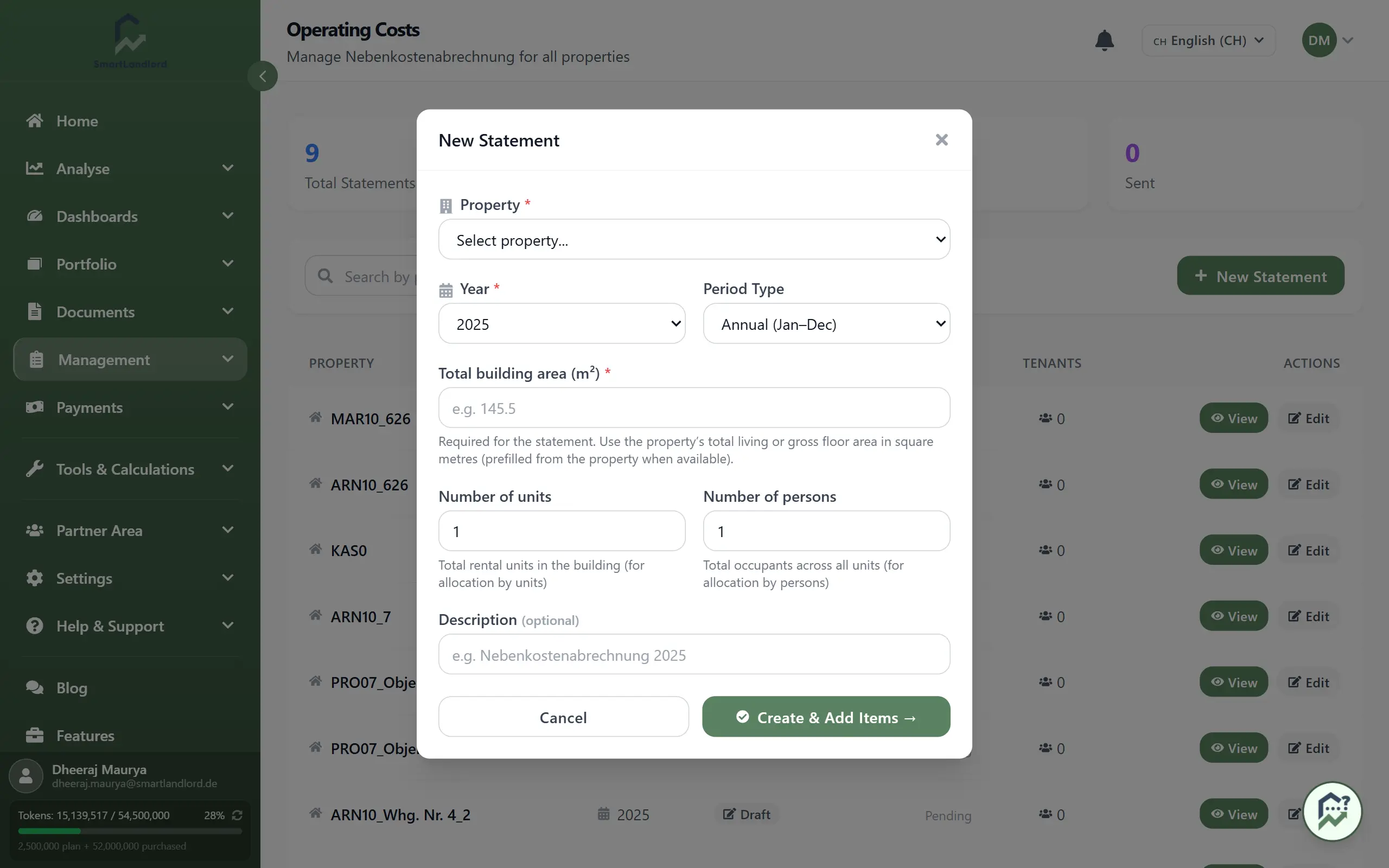
Click Nieuwe Verklaring to start a new statement and enter:
- The property you are billing.
- The year and billing period:
- full year,
- first or second half,
- quarter.
- The total building area in m², which is required.
- Optionally, the number of units and persons.
After you save, the statement is created in Concept status.
The total building area must be entered correctly because allocation calculations may depend on it.
2. Add cost items
Use Kostenpost toevoegen to add each running cost you want to allocate, for example:
- Verwarming
- Onroerendezaakbelasting
- Verzekering
- Conciërge
For every cost item, enter:
- The amount.
- An allocation key that defines how the cost is split:
- Gelijk per wooneenheid – by units.
- Naar woonoppervlakte (m²) – by living area.
- Naar aantal personen – by number of persons.
- Vast bedrag per huurder – by fixed amount.
- Naar verbruik / meterstanden – by consumption.
Choose the correct allocation method for each cost item. Incorrect allocation keys can lead to incorrect tenant charges.
Choose the allocation method that matches the agreement and the nature of the cost.
3. Calculate
When all relevant cost items are entered, click Bereken.
The system calculates for each tenant:
- their share of each cost item,
- their total prepayments,
- the resulting balance.
The balance will show either a credit or an amount due.
Review calculation results carefully before finalising. Correct any cost items or allocation settings that appear incorrect.
Review the results before moving on, and adjust cost items or allocation keys if something looks incorrect.
4. Finalise and send
Once you are satisfied with the calculation:
1. Click afronden to lock the statement.
2. Click Verzenden naar huurders to send notices to tenants.
3. Download PDFs if needed:
- a full statement overview, or
- a statement for an individual tenant.
After finalisation, the statement is locked and can no longer be edited.
After finalisation, the statement becomes part of your billing history.
Tenant statements
Open any tenant’s statement to see their detailed breakdown. Each per-tenant statement shows:
- cost types and total costs,
- the tenant’s share in percent,
- the occupancy time factor,
- the tenant’s amount,
- the result as either:
- Krediet voor huurder, or
- Extra betaling verschuldigd.
Tenants can see clearly how their share was calculated and whether they receive a refund or must pay extra.
Status flow
Each statement moves through these stages:
- Concept – created, still editable.
- Calculated – costs and tenant shares have been calculated.
- Afgerond – locked and confirmed.
- Verzonden – sent to tenants.
Check the statement status before making changes. Only draft statements remain editable.
Use the status to quickly see where a statement is in the process, from initial setup to completed delivery.