Manage Lease Agreements and Documents
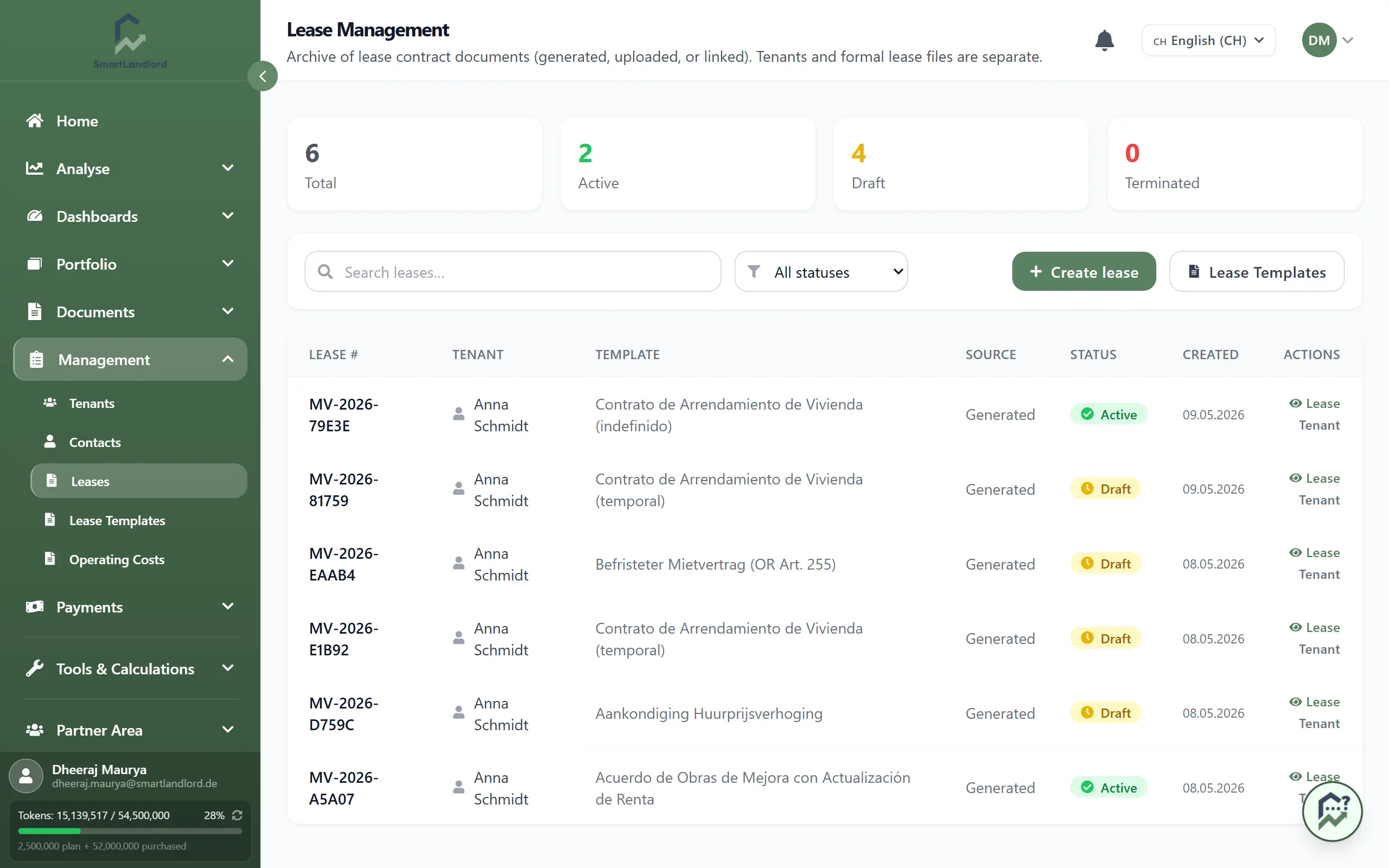
The Huurcontractbeheer is where all your lease documents live. Open it under Beheer → Huurcontracten to see which leases are active, upcoming, or historical, and to download or upload lease PDFs.
Lease records should always be linked to the correct property and tenant. Incorrect lease information can affect related payments, tenant records, and reporting.
1. What you see
Each row in the list represents one lease and typically shows:
- Lease number – internal reference or number.
- Huurder – the main tenant on the lease.
- Source – whether the lease was Gegenereerd from a template or Geüpload as your own PDF.
- Status:
- Concept – being prepared, not yet active.
- Actief – currently in force.
- Beëindigd – ended early.
- Verlopen – reached its end date and is no longer active.
- Date – usually start or signature date, depending on configuration.
Use the status filter to show only draft, active, terminated, or expired leases, and use search (if available) to find leases by number or tenant name.
2. Huurcontract maken
To add a new lease to the archive, click Huurcontract maken. You can:
- Generate a lease from a template
Choose “generate”, select property and tenant, pick a lease template, fill in key fields (dates, rent, deposit), review the preview, then save. The new lease appears in the list with status (for example, draft or active).
- Upload your own lease PDF
Choose “upload”, select property and tenant, upload the signed PDF, enter basic details (dates, rent, status), then save. The lease appears in the list with source = uploaded.
Before saving a lease, verify that the selected property, tenant, dates, rent, and deposit information are correct.
3. Downloaden PDF
To open a lease:
1. Go to Beheer → Huurcontracten.
2. Find the lease using filters or search.
3. Click the lease row to open its details.
In the detail view you can:
- Download the PDF using Downloaden PDF for printing or sharing.
- Open the tenant linked to the lease to see contact details and rent history.
- Update dates or status (if allowed by your setup) so the lease moves to the correct status group.
When updating lease dates or status, ensure the information reflects the actual lease situation so active, expired, and terminated leases are categorized correctly.
4. Tips
- For daily work, filter to Actief to see only current active leases.
Keep end dates and termination dates correct so leases move from active to expired or terminated automatically when appropriate.
- Always link each lease to the right property and tenant, so payments, tasks, and related records connect to the correct contract.
Incorrect lease assignments can cause related payments, tenant records, tasks, and reports to be linked to the wrong contract.