Create and Generate Property Documents as PDF
Use Document maken to generate professional PDF documents using the information already stored in your SmartLandlord account.
Open it under Documenten → Document maken.
Documents are generated automatically using your property, tenant, financing, and portfolio data. Missing or outdated information in SmartLandlord may result in incomplete or inaccurate documents.
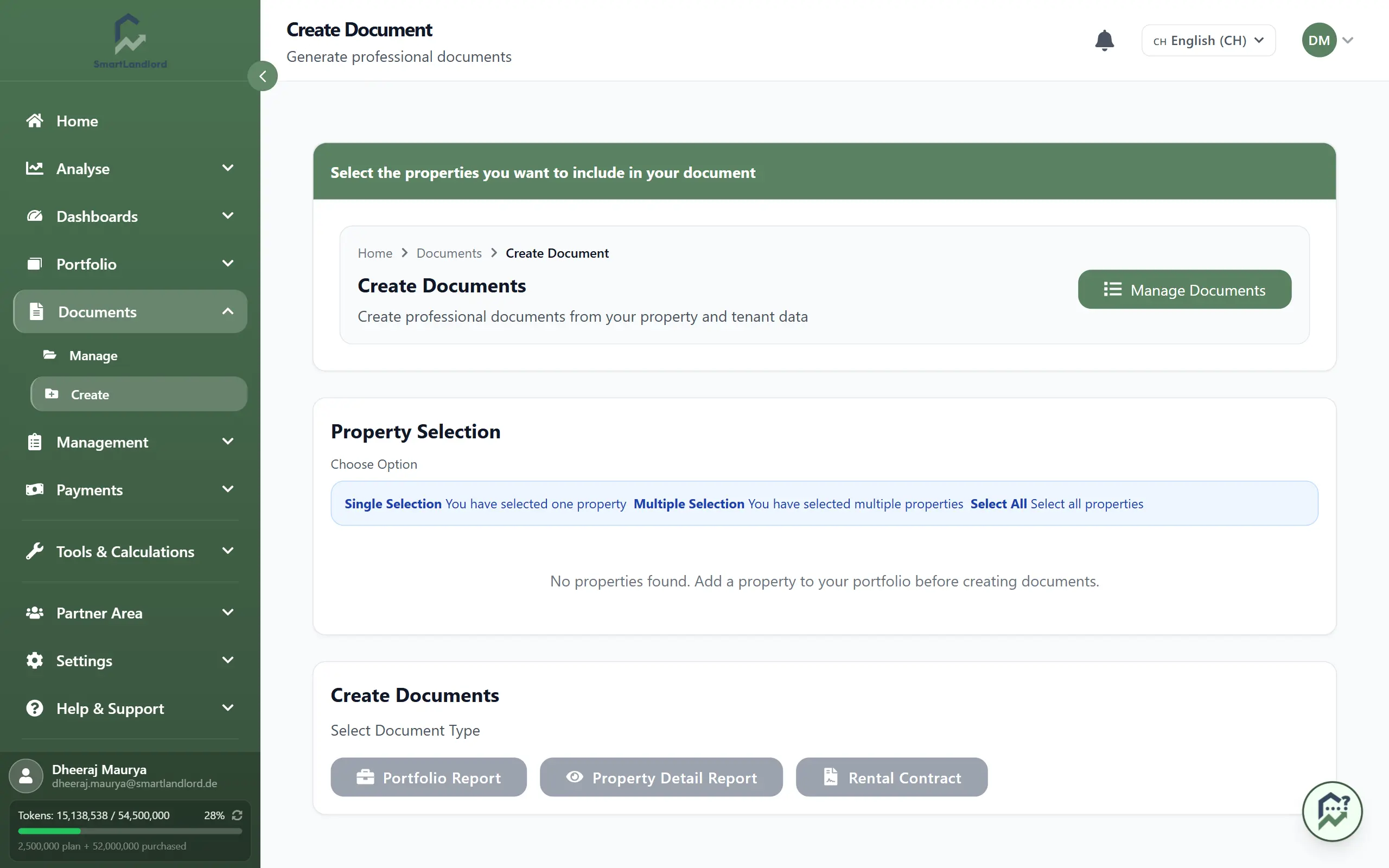
1. Select properties
Start by selecting the properties you want to include.
You can:
- Select a single property to generate property-specific documents.
- Select multiple properties to create portfolio-wide reports.
Your selection determines:
- Which data is included in the document.
- Which document types are available.
- Which properties appear in the final PDF.
Make sure the selected properties contain the information you want included before generating the document.
2. Choose a document type
Select the document you want to generate.
Available options may include:
Portefeuillerapport
Creates a report covering multiple properties.
This is useful for:
- Portfolio reviews.
- Meetings with advisers.
- Financing discussions.
- Performance reporting.
Detailrapport onroerend goed
Creates a detailed report for a single property.
This document can help when reviewing property performance, investment data, and property-specific information.
Huurcontract
Generates a rental agreement for a selected tenant and property.
Review all tenant and property information before generating a rental contract.
Anlage V / Beilage L
Country-specific tax documents that may be available depending on your account country.
These documents help organize property-related information for tax reporting purposes.
Choose the document type that best matches your intended use.
3. Configure document options
Depending on the selected document type, you may be able to configure additional settings.
Examples include:
- Your name or contact information.
- Included sections.
- Report contents.
- Property selection.
- Tenant selection.
Review the settings carefully before generating the document.
4. Generate the PDF
When everything is ready:
1. Review your selected properties and document type.
2. Configure any available options.
3. Click PDF genereren.
SmartLandlord will generate the PDF using the selected information.
Once generated, you can:
- Download the file.
- Save it for future reference.
- Print it.
- Share it with advisers, banks, tenants, partners, or authorities as needed.
Best practices
- Verify property and tenant information before generating documents.
- Select only the properties relevant to the report.
- Review document options carefully before downloading.
- Regenerate documents whenever important data changes.
- Store important reports for future reference and record keeping.
The Document maken section helps you quickly create professional documents and reports using the information already available in your SmartLandlord account.
Before generating a document
Before creating a document, make sure the underlying information is complete.
For example, verify that:
- Property details are up to date.
- Tenant information is correct.
- Required financing information has been entered.
- The correct property or properties have been selected.
Documents are generated from the information already stored in SmartLandlord. Missing information in the source data may result in incomplete documents.
Reviewing document settings
Different document types may provide different configuration options.
Before generating a PDF:
- Review the selected document type.
- Confirm the selected properties.
- Check any available options and included sections.
- Verify that the document contains the information you expect.
Taking a moment to review these settings can help avoid generating unnecessary versions of the same document.
Updating generated documents
If information changes after a document has been created, generate a new version using the updated data.
Examples include:
- Changes to tenant information.
- Updates to property information.
- Changes to financing details.
Generating a new PDF ensures the document reflects the latest information available in your SmartLandlord account.